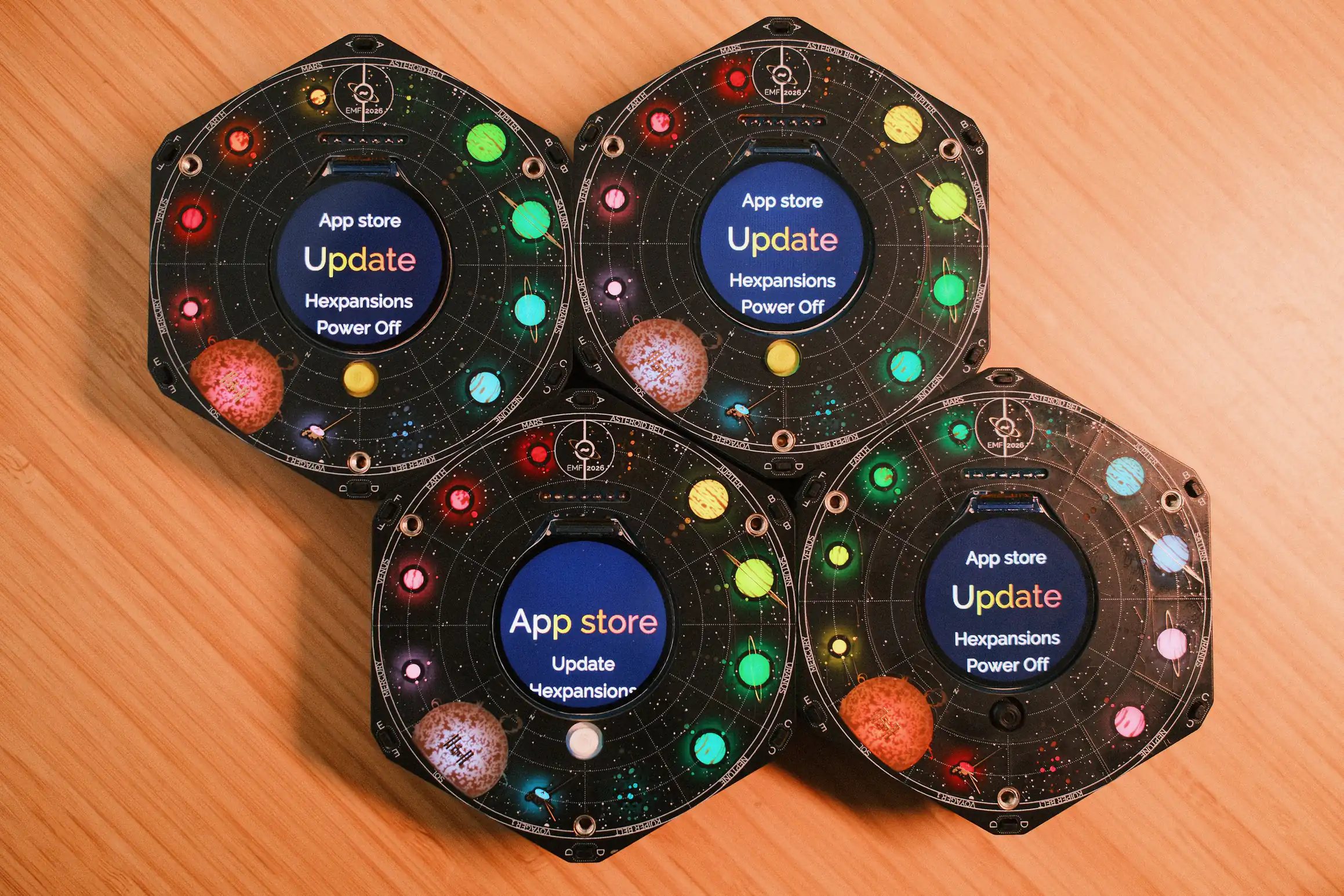
EMFCamp Tildagon Badge - retrofitted with the 2026 face plate
So you’re back home from EMF and you want to get your badge on the home Wi-Fi. Typing out your WiFi credentials using the badge interface is tricky. You might be able to manage for one badge, but with multiple badges you’re going to want a better way to do this. There is documentation for how to change the wifi settings using a computer, but for some reason following these never saved the new credentials on my badge. Here is what worked for me (on firmware v2.1.1).
- Get the MicroPython remote control utility:
mpremote(documentation here). - Power on your badge.
- Plug your badge into the computer using the ‘USB in’ port (this is the one on the left as you look at the screen). If you are using MacOS then you’ll need to accept the USB device permissions dialogue that may pop up. If you miss this screen you’ll need to plug your badge in again.
- Press ‘Reboop’ (top button on the side of the mainboard)
- Run
mpremoteand see if it connects to your badge.
When successful you should see a terminal session like this:
❯ pipenv run mpremote
Connected to MicroPython at /dev/cu.usbmodem2101
Use Ctrl-] or Ctrl-x to exit this shell
Occasionally I saw this response:
❯ pipenv run mpremote
mpremote: no device found
‘Rebooping’ and trying again resolved this.
- When you are connected to the badge, press
Ctrl-Cto launch a shell
KeyboardInterrupt:
MicroPython e0e9fbb17e-dirty on 2026-07-16; Tildagon with ESP32S3
Type "help()" for more information.
>>>
- Create a text file with the following lines, changing the SSID and password to your WiFi credentials.
import settings
settings.set('wifi_ssid', 'changeme')
settings.set('wifi_password', 'changeme')
settings.set('wifi_wpa2ent_username', None)
settings.save()
- Copy the contents of this file and paste it into your
mpremoteterminal in one go.
>>> import settings
>>> settings.set('wifi_ssid', 'changeme')
>>> settings.set('wifi_password', 'changeme')
>>> settings.set('wifi_wpa2ent_username', None)
>>> settings.save()
>>>
- Press
Ctrl-Dto soft reboot your badge. - Disconnnect the USB cable.
- Press the ‘Reboop’ button again.
- Use the menu on the badge to initiate an update and it will connect to the WiFi
If you find a better way to do this, please let me know and I’ll update these instructions.